
How to Begin Implement E Health Networks Project in NS3
To begin executing an E-Health Network project in NS3, we have to replicate an interaction network, which enables real-time healthcare applications like patient monitoring, telemedicine, and emergency response. Below is a comprehensive mechanism to get started:
Steps to Begin Implementing an E-Health Networks Projects in NS3
- Understand E-Health Networks
Following is an E-Health network’s core modules:
- Wireless Body Area Networks (WBANs): Gather patient data to utilize wearable sensors.
- Gateways: Combine sensor data and send it to healthcare servers.
- Healthcare Servers: Save and execute the patient data for analysis.
- Communication Protocols: We can utilize protocols such as Zigbee, Wi-Fi, or LTE for interaction.
- Metrics: Estimate the performance parameters like latency, reliability, energy efficiency, and throughput.
- Define Project Objectives
Decide on the project’s scope:
- From patient sensors to a central server, replicate data collection.
- Examine interaction protocols for metrics like latency, reliability, and energy utilization.
- Execute and estimate the fault-tolerant or QoS-aware routing approaches.
- Install and Set Up NS3
- We should download and install NS3 environment on the system.
- Learn about following modules like:
- Wi-Fi Module: It is used for wireless communication.
- LTE Module: For cellular interaction.
- Internet Stack Module: For IP-based networking.
- Mobility Module: These modules support for node mobility within ambulatory scenarios.
- Design the E-Health Network Architecture
Key Components:
- Sensors (WBAN Nodes): Observe the essential signs such as heart rate or blood pressure.
- Gateways: It helps to accumulate and send data from sensors to servers.
- Healthcare Servers: Execute and examine the patient information.
- Communication Links: Wireless or wired connection for data transfer.
- Implement the Simulation
Step A: Create Nodes
Make nodes with sensors, gateways, and healthcare servers for WBAN.
NodeContainer sensors, gateways, healthcareServers;
sensors.Create(5); // 5 wearable sensors
gateways.Create(1); // 1 gateway
healthcareServers.Create(1); // 1 healthcare server
Step B: Configure Communication Links
- Set Up Wi-Fi for Sensors and Gateway:
WifiHelper wifi;
wifi.SetStandard(WIFI_STANDARD_80211n);
YansWifiChannelHelper wifiChannel = YansWifiChannelHelper::Default();
YansWifiPhyHelper wifiPhy = YansWifiPhyHelper::Default();
wifiPhy.SetChannel(wifiChannel.Create());
WifiMacHelper wifiMac;
wifiMac.SetType(“ns3::AdhocWifiMac”);
NetDeviceContainer sensorDevices = wifi.Install(wifiPhy, wifiMac, sensors);
NetDeviceContainer gatewayDevices = wifi.Install(wifiPhy, wifiMac, gateways);
- Set Up LTE for Gateway and Healthcare Server (Optional):
LteHelper lteHelper;
NetDeviceContainer gatewayLteDevices = lteHelper.InstallEnbDevice(gateways);
NetDeviceContainer serverLteDevices = lteHelper.InstallUeDevice(healthcareServers);
Step C: Install Internet Stack
We need to install the Internet stack at every node.
InternetStackHelper stack;
stack.Install(sensors);
stack.Install(gateways);
stack.Install(healthcareServers);
Ipv4AddressHelper ipv4;
ipv4.SetBase(“10.1.1.0”, “255.255.255.0”);
Ipv4InterfaceContainer sensorInterfaces = ipv4.Assign(sensorDevices);
ipv4.SetBase(“10.2.1.0”, “255.255.255.0”);
Ipv4InterfaceContainer gatewayInterfaces = ipv4.Assign(gatewayDevices);
ipv4.SetBase(“10.3.1.0”, “255.255.255.0”);
Ipv4InterfaceContainer serverInterfaces = ipv4.Assign(serverLteDevices);
Step D: Configure Mobility Models
- Static Sensors:
MobilityHelper sensorMobility;
sensorMobility.SetMobilityModel(“ns3::ConstantPositionMobilityModel”);
sensorMobility.Install(sensors);
- Mobile Gateway (Optional):
MobilityHelper gatewayMobility;
gatewayMobility.SetMobilityModel(“ns3::ConstantVelocityMobilityModel”);
gatewayMobility.Install(gateways);
Ptr<ConstantVelocityMobilityModel> mobility = gateways.Get(0)->GetObject<ConstantVelocityMobilityModel>();
mobility->SetVelocity(Vector(10.0, 0.0, 0.0)); // Gateway moving at 10 m/s along the X-axis
Step E: Add Traffic Applications
- Install Traffic Source on Sensors:
- Replicate data generation to leverage OnOffApplication.
OnOffHelper onOff(“ns3::UdpSocketFactory”, InetSocketAddress(gatewayInterfaces.GetAddress(0), 9));
onOff.SetAttribute(“DataRate”, StringValue(“500Kbps”));
onOff.SetAttribute(“PacketSize”, UintegerValue(512));
ApplicationContainer sensorApps = onOff.Install(sensors);
sensorApps.Start(Seconds(1.0));
sensorApps.Stop(Seconds(10.0));
- Install Traffic Sink on Healthcare Server:
- Execute the data with the support of PacketSink on server.
PacketSinkHelper packetSink(“ns3::UdpSocketFactory”, InetSocketAddress(Ipv4Address::GetAny(), 9));
ApplicationContainer serverApps = packetSink.Install(healthcareServers);
serverApps.Start(Seconds(1.0));
serverApps.Stop(Seconds(10.0));
- Configure Simulation Parameters
Configure simulation duration and run the simulation by using below command line.
Simulator::Stop(Seconds(15.0));
Simulator::Run();
Simulator::Destroy();
- Evaluate Performance
- Metrics to Analyze:
- Latency: Estimate the time taken within data delivery.
- Throughput: Examine the volume of data that are effectively sent.
- Energy Efficiency: Mimic battery utilization for sensors.
- Packet Delivery Ratio (PDR): Measure data reliability.
- Export Results:
- For in-depth analysis, we make use of NS3 logging or custom scripts.
- Visualization:
- Transfer records into external tools NetAnim in Python or MATLAB for visualization.
- Advanced Features
- QoS Mechanisms:
- Give precedence to critical health data to leverage traffic variation.
- Fault Tolerance:
- Replicate the node or link failures and measure the retrieval approaches.
- Integration with IoT:
- Prolong the network with IoT devices such as smart thermometers or blood pressure monitors.
- Security:
- Mimic encryption or verification methods for secure data transmission.
Sample Complete Code Framework
#include “ns3/core-module.h”
#include “ns3/network-module.h”
#include “ns3/internet-module.h”
#include “ns3/wifi-module.h”
#include “ns3/mobility-module.h”
#include “ns3/applications-module.h”
using namespace ns3;
int main() {
// Create Nodes
NodeContainer sensors, gateways, healthcareServers;
sensors.Create(5);
gateways.Create(1);
healthcareServers.Create(1);
// Configure Wi-Fi
WifiHelper wifi;
wifi.SetStandard(WIFI_STANDARD_80211n);
YansWifiChannelHelper wifiChannel = YansWifiChannelHelper::Default();
YansWifiPhyHelper wifiPhy = YansWifiPhyHelper::Default();
wifiPhy.SetChannel(wifiChannel.Create());
WifiMacHelper wifiMac;
wifiMac.SetType(“ns3::AdhocWifiMac”);
NetDeviceContainer sensorDevices = wifi.Install(wifiPhy, wifiMac, sensors);
NetDeviceContainer gatewayDevices = wifi.Install(wifiPhy, wifiMac, gateways);
// Install Internet Stack
InternetStackHelper stack;
stack.Install(sensors);
stack.Install(gateways);
stack.Install(healthcareServers);
Ipv4AddressHelper ipv4;
ipv4.SetBase(“10.1.1.0”, “255.255.255.0”);
ipv4.Assign(sensorDevices);
ipv4.SetBase(“10.2.1.0”, “255.255.255.0”);
ipv4.Assign(gatewayDevices);
// Configure Mobility
MobilityHelper mobility;
mobility.SetMobilityModel(“ns3::ConstantPositionMobilityModel”);
mobility.Install(sensors);
mobility.Install(gateways);
mobility.Install(healthcareServers);
// Traffic Applications
OnOffHelper onOff(“ns3::UdpSocketFactory”, InetSocketAddress(Ipv4Address(“10.2.1.1”), 9));
onOff.SetAttribute(“DataRate”, StringValue(“500Kbps”));
onOff.SetAttribute(“PacketSize”, UintegerValue(512));
ApplicationContainer sensorApps = onOff.Install(sensors);
sensorApps.Start(Seconds(1.0));
sensorApps.Stop(Seconds(10.0));
PacketSinkHelper packetSink(“ns3::UdpSocketFactory”, InetSocketAddress(Ipv4Address::GetAny(), 9));
ApplicationContainer serverApps = packetSink.Install(healthcareServers);
serverApps.Start(Seconds(1.0));
serverApps.Stop(Seconds(10.0));
// Run Simulation
Simulator::Stop(Seconds(15.0));
Simulator::Run();
Simulator::Destroy();
return 0;
}
These steps will help you start the implementation and simulation of E Health Networks projects and analyse their performance results in NS3 environment. It can allow you to broaden the projects further.
 Click Here to watch our latest output video using NS3 simulator
 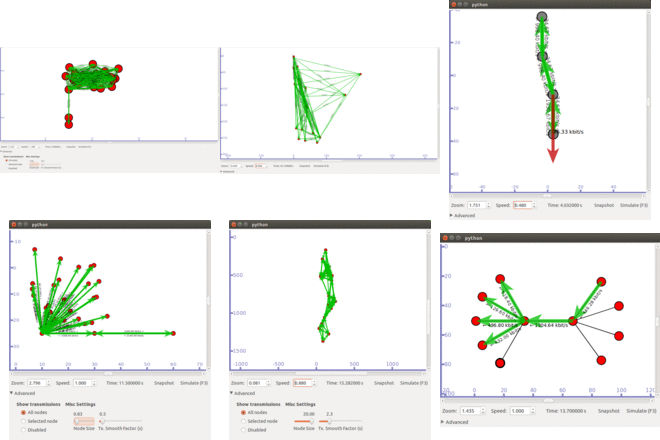 Click Here to watch our latest projects screenshots using NS3 simulator